Give your ordinary portrait photo glamorous effect with charming make-up - 19 June 2011 - Poetry, Writings, Art, Design
Wednesday, 2013-06-19, 1:21 PM

Creativity comes from simplifying

Main | Registration | Login
Welcome Guest
RSS
MY TUTORIALS ON OTHER SITES
  • Create a serene lake scene photo manipulation

  • Create a dark photo manipulation of a devil woman

  • Design a summer time vacation poster

  • Create a space battle scene in Photoshop

  • Create a garden scene with a cat gazing at a fish cloud

  • Create a beautiful mixed media portrait in photoshop

  • Create a bunny house in photoshop

  • Create a Surreal Head Of Tree Photo Manipulation

  • Create a Dark and Surreal Photo Manipulation "Volcano Spirit"

  • Create a Mysterious and Fantasy Woman Portrait in Photoshop

  • Create a Snowy Night Landscape Matte Painting

  • Create a Christmas night landscape photo manipulation

  • Create a colorful photo manipulation "Simple Life"

  • Create a fantasy forest fire scene photo manipulation

  • Create a floating superhero scene with sci-fi lighting effect

  • Create a Beautiful Abstract Cosmic Photo Manipulation

  • Create a Nature Inspired Advertisement Design

  • Create a Dark Ghostly Scene Photo Manipulation

  • Create a Fantasy Witch Scene Photo Manipulation

  • Create a fantasy halloween witch cat photo manipulation

  • Create a beautiful sunrise landscape matte painting in photoshop

  • Create a Surreal Photo Manipulation "Flooded"

  • Create a Surreal Portal Scene with Powerful Lighting effect

  • Create a Sci-fi photo manipulation "Space Station"

  • Create emotional photo manipulation "Magical Rose"

  • Create An Eerie Abstract Photo Manipulation

  • Create a Surreal Photo Manipulation Sky Gate

  • Create a Fantasy Mushroom House Photo Manipulation

  • Create a Surreal Photo Manipulation "Daydream"

  • Create a Dark Photo Manipulation "Nocturna"

  • Create an emotional sunset photo manipulation

  • Create a cat in a magical pond scene photo manipulation

  • Create a surreal photo manipulation Coffee Mind

  • Create a Fantasy floating park photo manipulation

  • Twisting Water-Surreal photo manipulation

  • Firing Heart-Emotional photo manipulation

  • Create a dramatic building explosion scene

  • Let me sink-Emotional rainy scene photo manipulation

  • Create a colorful and futuristic photo manipulation

  • The Sky Station - Surreal photo manipulation

  • The Vampire Hunter - Dark photo manipulation

  • Dark storm scene photo manipulation

  • The Released - Dark and surreal photo manipulation

  • Wounded rose - Create an abstract photo manipulation

  • Create a dark and emotional photo manipulation

  • Create a dramatic battle scene in photoshop

  • The Forgotten - Dark an conceptual photo manipulation

  • Night's butterfly-Create a dark and mysterious fantasy portrait

  • Create an anti-smoking concept design in photoshop

  • A dreamy world-Create a fantasy landscape

  • Create a dramatic action scene poster

  • Create a nature inspired, out of bound photo effect in photoshop

  • Cool metal text effect

  • Dance in blue - Fantasy photo manipulation

  • Emotional night scene - Photo manipulation

  • Create a lovely 3D like butterfly in Photoshop

  • Create a beautiful Valentine background with moon and heart

  • Create a beautiful and romantic Valentine wallpaper

  • Beautiful pink flower portrait

  • Create a beautiful spring greeting card in photoshop

  • Beautiful spring-Fantasy photo manipulation

  • Cool floral 3D text effect

  • Colorful bokeh heart effect

  • Retro artistic effects

  • Sexy ghost in the uninhabited house-Dark photo manipulation

  • Colorful and glamour composition style in photoshop

  • Glowing text in colorful fantastic space scene

  • Magical blossom dance-Fantasy photo manipulation

  • RECENT TALKS

    Rachel, when you mak...


    how do you do that? ...

    Did you change the m...

    TAGS
    painting Blend Forest season vector green freebie background Feeling butterfly gif Blood Misc photo Sky Beautiful girl Inspiration Emotional Pink special effect Life sparkling Creepy vibrant Blue icon Creative dark BANNER glitter graphics color make-up Design Photo effect red abstract Beauty star glowing wallpaper missing NIGHT Random thoughts photo manipulation surreal Effect Rain Calligraphy script Patter pattern Snow music Dream Heart Photoshop tutorial My poetry Sweet Stock Photo retouch Portrait Hurt girl drawing Winter romantic Mood spring texture Text effect model Surreal rose font Dreamy flower yellow Beautiful Photo manipulation Strength Autumn Soft frame fire Fantasy colorful Golden Asadal Nature Woman Mandy Moore light Fonts photoshop My story photos Penelope Cruz GHost Skin love
    ARCHIEVES
    SEARCH


    RECENT POSTS
    [2013-05-21]
    Free star backgrounds
    [2013-03-07]
    Create a colorful abstract cosmic photo manipulation
    [2013-03-05]
    Free abstract shapes and light streaks
    [2012-05-20]
    On My Road - Surreal Photo Manipulation
    [2012-03-07]
    Create a Nature themed, Astract photo manipulation
    MOST POPULAR
    [2010-07-26]
    Complete portrait retouching
    Views: 63685
    [2011-01-31]
    Create beautiful glowing flowers
    Views: 55667
    [2010-11-15]
    25 beautiful dreamy effect photoshop tutorials
    Views: 55573
    [2010-11-26]
    The enchanted forest- Fantasy photo manipulation
    Views: 54132
    [2011-01-15]
    Color blending collection 3
    Views: 42836
    [2012-05-20]
    On My Road - Surreal Photo Manipulation
    Views: 40318
    [2011-06-14]
    Create a burning girl with fire effect
    Views: 39972
    [2010-08-22]
    Color blending collection I
    Views: 39946
    [2010-03-15]
    Beautify a portrait
    Views: 38306
    [2010-05-29]
    Enhance portrait photo with natural look
    Views: 36661
    MOST TALKED
    [2012-05-20]
    On My Road - Surreal Photo Manipulation
    Opinions : 103
    [2013-05-21]
    Free star backgrounds
    Opinions : 93
    [2010-11-26]
    The enchanted forest- Fantasy photo manipulation
    Opinions : 81
    [2011-01-31]
    Create beautiful glowing flowers
    Opinions : 80
    [2011-06-14]
    Create a burning girl with fire effect
    Opinions : 68
    [2010-12-06]
    The Winter Queen - Fantasy photo manipulation
    Opinions : 47
    [2010-10-10]
    Create a beautiful emotional black and white love scene
    Opinions : 43
    [2010-03-15]
    Beautify a portrait
    Opinions : 43
    [2010-07-06]
    Create beautiful golden skin effect using three different ways
    Opinions : 39
    [2010-07-26]
    Complete portrait retouching
    Opinions : 36
    RANDOM POSTS
    [2010-03-24]
    Feel the rain...
    [2010-07-21]
    Vibrant and glamourous retouching
    [2012-05-20]
    On My Road - Surreal Photo Manipulation
    [2010-04-30]
    Drifting moment
    [2010-01-09]
    Rainy night
    MY FAVORITE SITES
  • PSD Tutsplus
  • FanExtra network
  • Webmaster tutorials
  • Typography resources
  • STATISTICS

    Total online: 1
    Guests: 1
    Users: 0
    Main » 2011 » June » 19 » Give your ordinary portrait photo glamorous effect with charming make-up


    10:23 PM
    Give your ordinary portrait photo glamorous effect with charming make-up

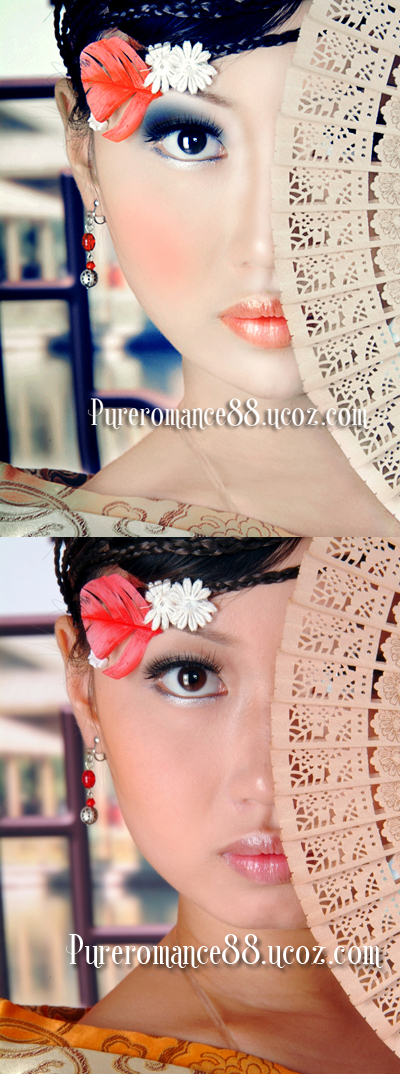
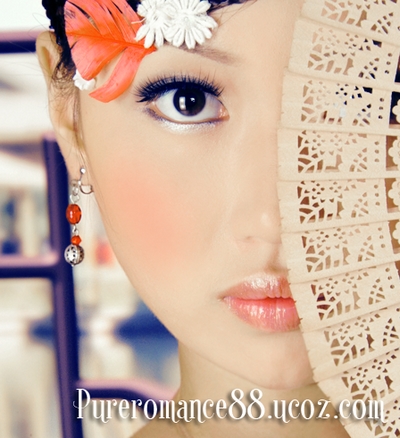
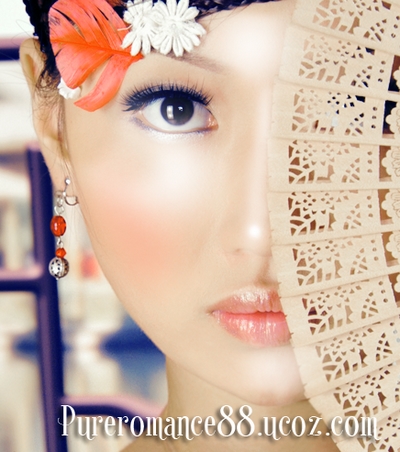
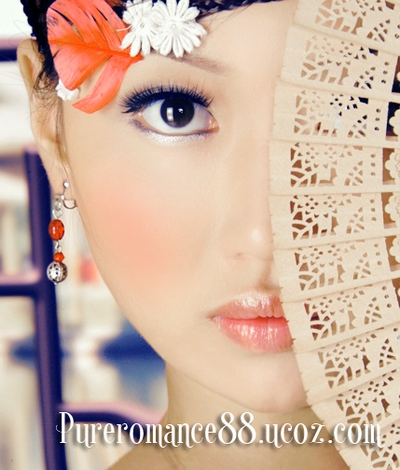
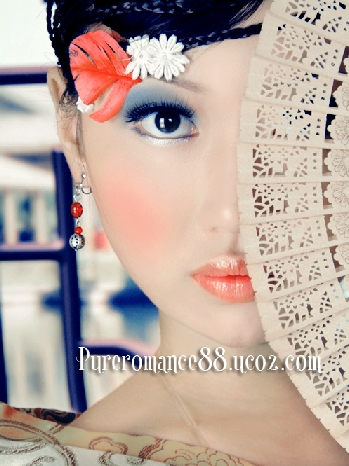
    I didnt mean to write this tut but while playing around with some adjustment layers ( for different purpose), i realized that i like this effect very much, so...lol. Anyway i hope you will like it. 

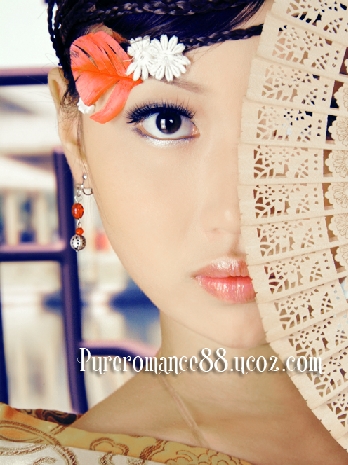
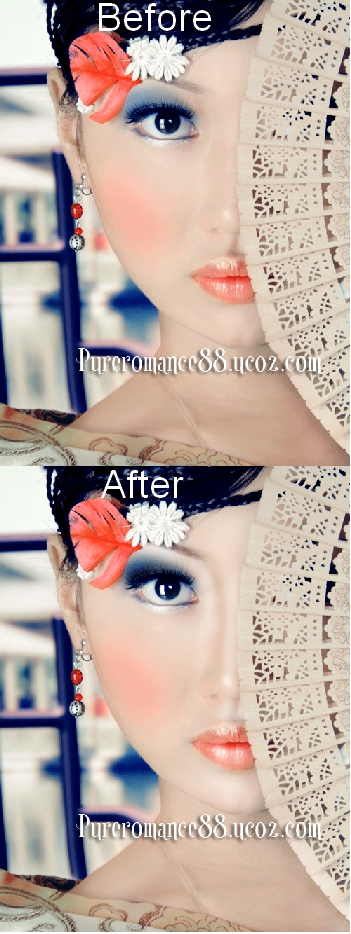
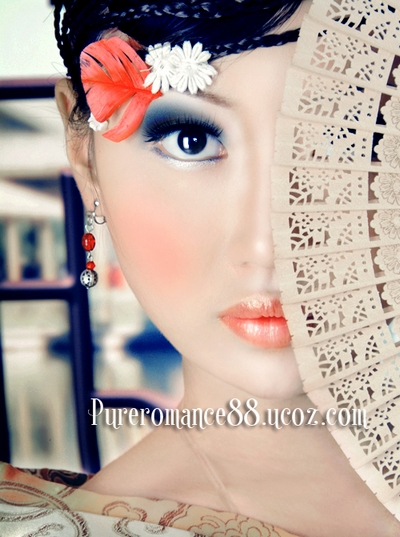
    After and Before:


    Stock:

    1. Open your portrait photo. 

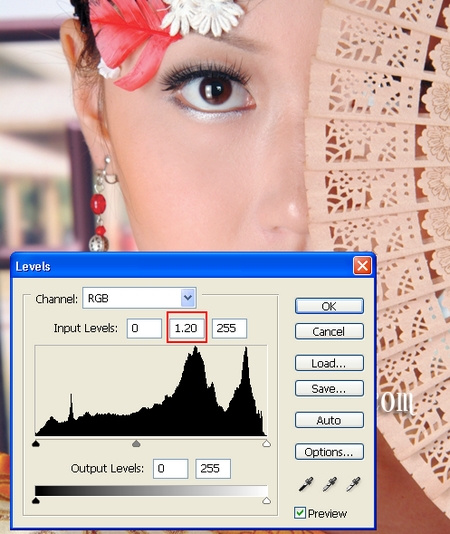
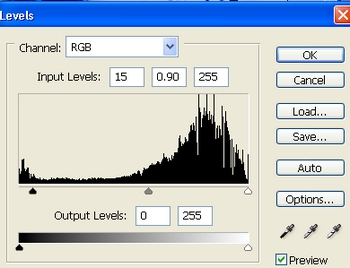
    Depending on your own one you can use Levels or Curves to brighten or darken to get proper light and shadow. For my picture, i use Levels to brighten it. Create a new Levels layer:


    I only change Midtones from 1 to 1.2 as i dont want to brighten highlights. 

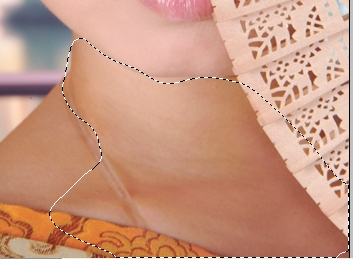
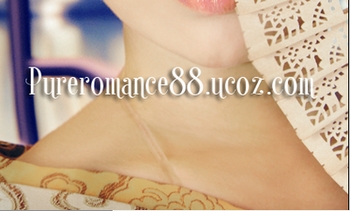
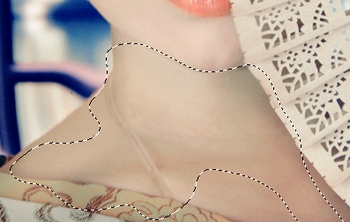
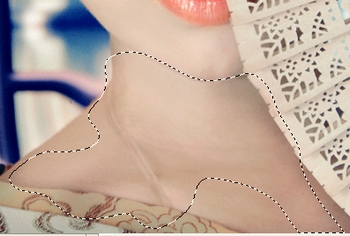
    2. Create a new layer, use Spot healing brush to fix blemishes on her face, wrinkles and dark part on her neck:
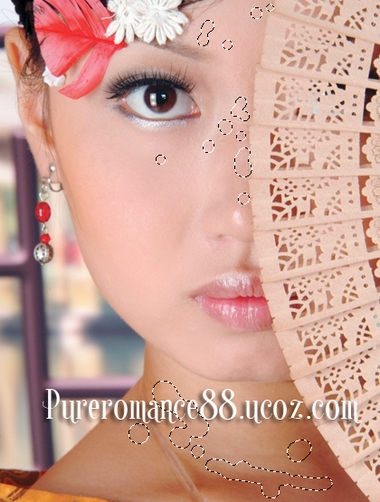

    I like to use this brush with hardness = 0%, diameter depending on the size of blemishes. 

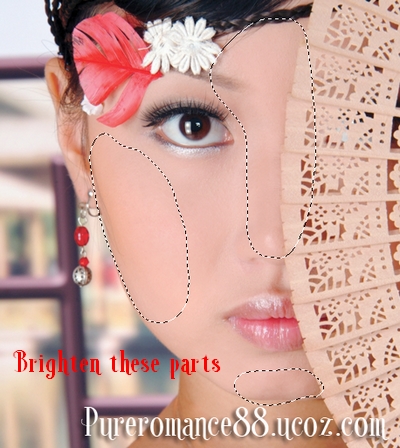
    3. Create a new layer, use Eyedropper Tool to pick color on bright part of model cheek or any bright part you want to apply with. For my picture, i have color #f1bab1 for foreground. Use soft brush, opacity and flow 20-25% to paint on any dark part to brighten and soften it. But remember dont abuse it or paint many times on one part as you can lose face details and your model will look unnatural. 
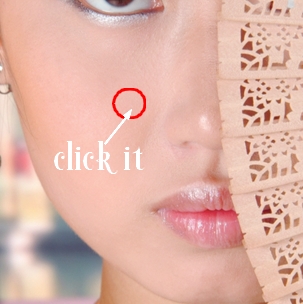


    4. New layer, use soft brush and color #e5b59e ( that is picked from bright part of model neck) with same opacity and flow in previous step to paint on neck:


    5. Stamp visible all layers. In this step we will use Liquify tool to determine face and body shape to create a slimmer look. Choose Filter-Liquify and grab Forward Warp Tool with settings below :
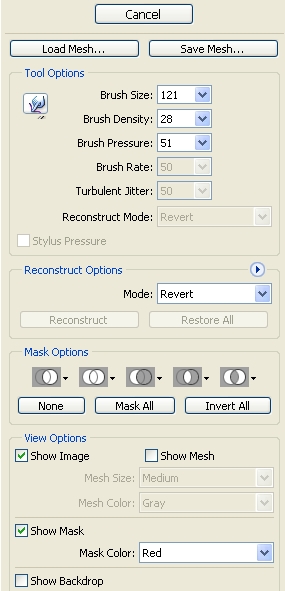

    Now use this tool to pull in face feature ( cheeks, chin) and neck, shoulder, pull out the lowest part of chin to make oval shape, also pull down neck to make it longer. Remember that you should straighten shoulder to create slender look. You can use this tool ( or Turbulence tool and another liquify tools) to flatten, thin, thicken..., even change expression of model face to get the look you want. But besides that you must care of  proportion between facial features, between face and another parts of body ( the size, eyes direction, expression...).  Dont let your model has a slim face above a plump neck and thick shoulders, or eyes(  nose, lips...) too big and wide on a long or narrow face, or lip corner is lifted while eyes showing sadness or shedding tear..etc... Avoid them and dont abuse this technique. We make proportion, not perfection. 
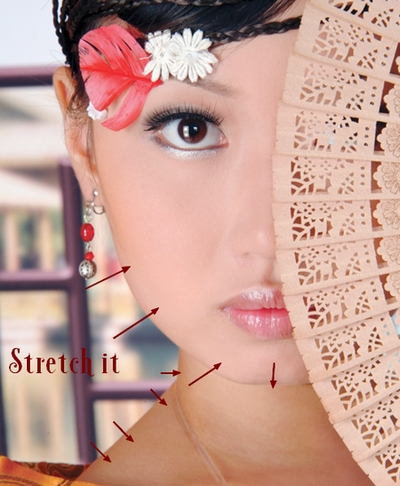

    After liquifying, you may notice liquified parts can be blurred. To fix it, make selection for these parts, apply Unsharp mask or Smart Sharpen with correct values( depending on the sharpness of your picture). 

    You can see my result:
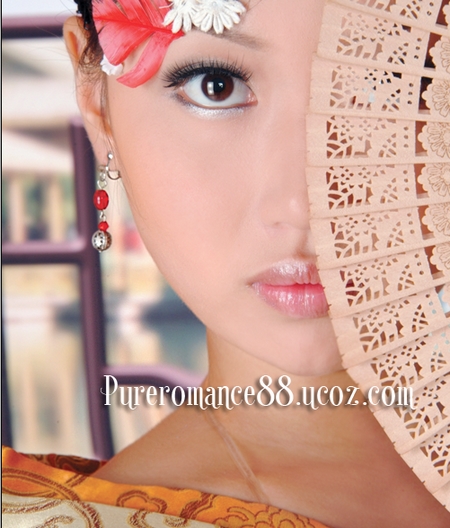
    6. Create some new adjustment layers:
    Color Balance:
    Midtones: 12, 8, -20
    Shadows: 7, -4, -5
    Highlights: -1, 7, -7

    Selective color:
    Reds: 16, -28, 16, 0
    Yellows: -93, -51, 25, 0
    Neutrals: 16, 16, -28, 0
    Blacks: 47, 21, -12, 13

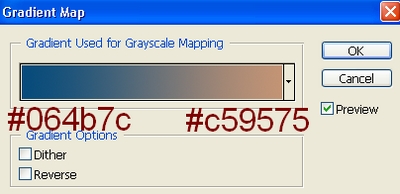
    Gradient Map:

    Set this Gradient Map layer to Soft light 100%.  

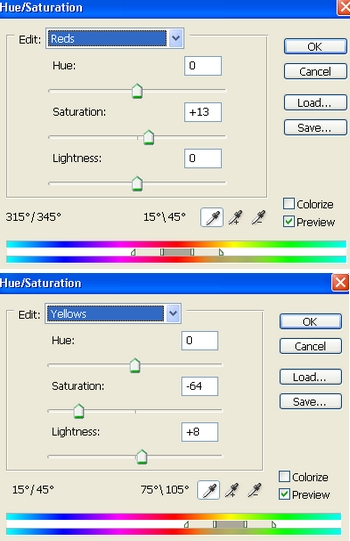
    Hue/Saturation:


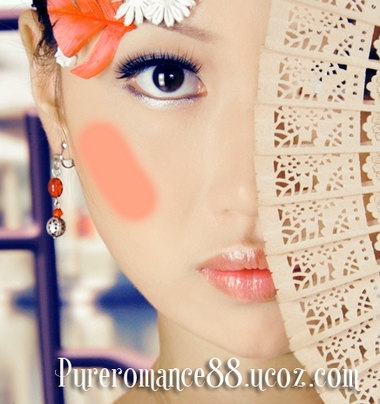
    7. Create a new layer, use brush, color #  fea586, hardness 40-45% to paint on her cheek:


    Apply Gassian Blur with 18 px then lower opacity to 60%:


    8. On a new layer, use soft white blush to paint on forehead, chin, nose bridge, under the eye:


    Then change opacity to 30%:


    9. New layer again, i want to brighten neck. Use soft brush, color   #e5b59e to paint on this part, then set the mode to Soft light 100%:


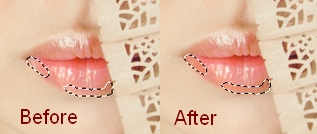
    10. Now we will fix the lips. Make a new layer, use brush, color #fc805a to paint on selected part to make the lips stroke fuller and clearer ,and remove highlight at the left corner of lip, then set this layer to Darken 50%:


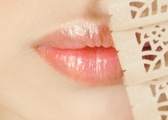
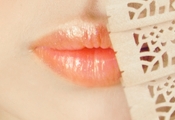
    11. Make a new layer, use soft brush, color #fc805a to paint on lips, set this layer to Soft light 100%:


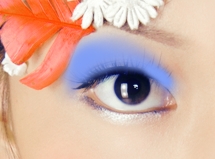
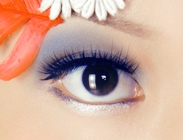
     12. Use a new layer, grab soft brush, color #7f9ef6 to paint on eyelid, try to paint the end of eye larger :

    Change the mode to Multipy 60% .
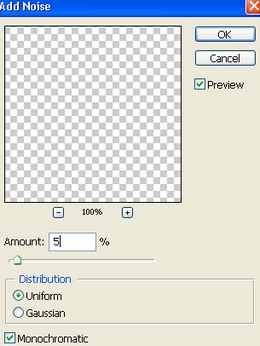
    Choose Filter-Noise-Add noise:


    13. Make some new adjustment layers again:
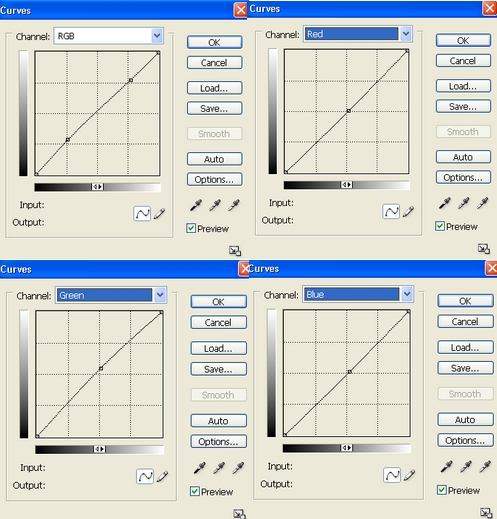
    Curves:

    Color Balance:
    Midtones: -24, -12, 16

    Selective color:
    Reds: 0, 9, 13, 0
    Yellows: 0, 15, -57, 0
    Blues: 37, 31, 36, 0
    Neutrals: 8, -6, -10, 0

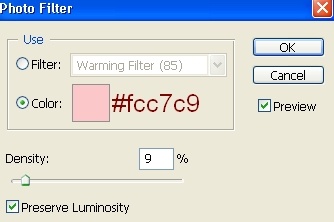
    Photo Filter:


    Levels:


    14. After step above, we see the neck has some little greenish tone.
     

    So i use soft brush again, color  #ff8e85, opacity 20% on a new layer with Color mode 30%, to paint on this part.   


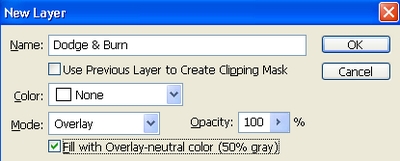
    15. Use a new layer with Overlay mode and fill it with 50% gray:


    Use Dodge and Burn to determine facial features: Dodge tool for brightening nose bridge, chin, forehead, skin under and above the eye, skin under nose ( T shaped face), sclera, lips, neck:

    Burn tool for nose side, iris, eyelid, especially the end of eyelid:

    You can see eye  given more contrast, nose straighter and facial features clearer. 


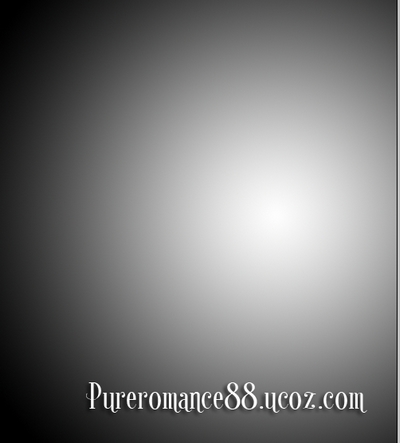
    16. Create a new layer, make a Radiant Gradient: 


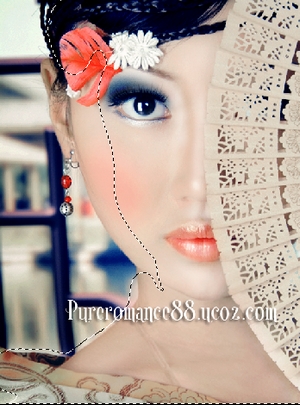
    Set this layer to Soft light 100%, add layer mask to erase selected part :


    This step to make background behind model look darker.

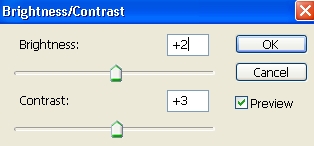
    17. Create a new Brightness/Contrast layer:


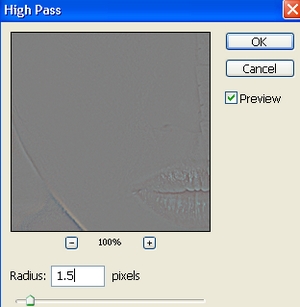
    18. Final step: Merge all layers. Use High Pass filter with 1.5 px and set this layer to Soft light 100%:


    This step is to sharpen picture. Add layer mask to clear noise effect on background.

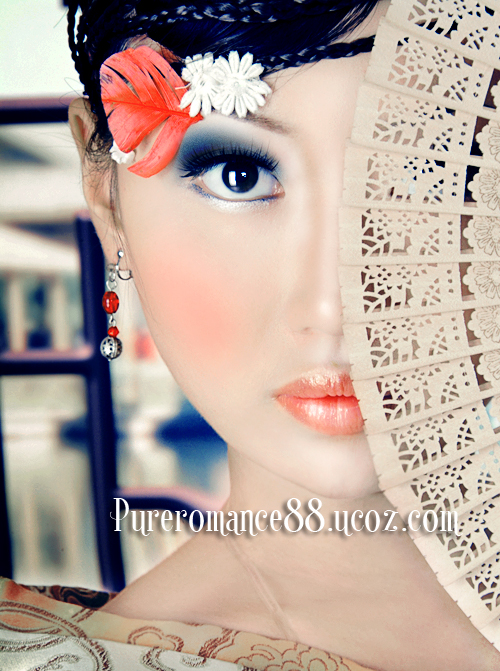
    Final Result:

    Views: 22280 | Added by: Admin | Tags: make-up, photoshop, Charming, Effect, Photo retouch, Photoshop tutorial, Glamor, Glamorous, Beauty, Portrait

    ABOUT ME: I'm Jenny and i live in Hanoi, Vietnam. If you like what i write or want to keep in touch with me, you can subscribe to My blog, email me or like My Facebook page to keep updates of my latest works.

    Please ask before you want to post or translate my tutorials on other sites. I hardly decline if you ask nicely. Thank you :).

    Share
    Share |
    Total opinions: 26
    0  
    1 Jack   (2011-06-18 2:51 PM)
    Nice make up and only thing i noticed the blue shade below eyebrow in not going perfect with the image, As of me it have not added any advantage to image, apart from this every thing looks fine .

    -----------------------------------
    http://www.deepetch.com
    Clipping path service and more

    0  
    2 Admin   (2011-07-05 11:27 AM)
    I like this make-up style and i think it can give depth to eyes. Anyway thanks for your comment Jack. You're always thoughtful and caring. Much appreciated wink

    0  
    3 Paula Millers   (2011-07-07 12:41 PM)
    great glamorous effect! I've fun to do this tutorial at my pic!
    thanks biggrin

    -Paula <a href="http://www.voodoo-spells.net">voodoo spells</a>

    0  
    7 Admin   (2011-07-21 11:08 PM)
    im glad it helpful. Thanks for sharing this wink

    0  
    4 hitesh   (2011-07-07 2:21 PM)
    so nice tutorials thanks

    0  
    8 Admin   (2011-07-21 11:08 PM)
    you're welcome wink

    0  
    5 Amro   (2011-07-10 0:39 AM)
    Hi Jenny . Thank u so much 4 the sharing this beautiful tutorial. Really I love all your steps. So I am looking for your new posts and keep it up.
    I will be glad if visit my DA page http://amro0.deviantart.com/ biggrin

    0  
    9 Admin   (2011-07-21 11:11 PM)
    Thank you very much for kind words. I'm looking at your page and adding you to my watch list. So nice to have a more way to keep in touch with you ;). Best wishes wink

    0  
    6 XRumer   (2011-07-15 10:53 PM)
    Уважаемый Администратор, довольно часто захожу на Ваш сайт, много полезной информации, у Вас очень стильный и красивый сайт!

    Портал Ваш правда херово оптимизированный и не посещаем. Попробуйте рекламировать его с помощью софта XRumer 7 Elite (ХРумер 7 Элите) скачать можно тут http://x-rumer.ru/ говорят эффективная программа для оптимизации ucoz сайтов.

    0  
    10 Admin   (2011-07-21 11:11 PM)
    sorry i dont know russian. Pls use english.

    0  
    11 Chigfuffcug   (2012-01-20 8:36 AM)
    хорошее начало

    0  
    12 Admin   (2012-02-13 4:45 PM)
    english pls.

    0  
    13 Kayli   (2012-02-15 10:07 PM)
    Many many qaultiy points there.

    0  
    14 Admin   (2012-03-12 2:58 PM)
    thanks wink

    0  
    15 Aftetitycle   (2012-05-27 12:28 PM)
    Fab post smile Makes me wish to change my comment boycott

    0  
    16 Aftetitycle   (2012-05-29 12:26 PM)
    Going to add you to my google reader, awsome stuff. Maintain it up and u have a loyal reader.
    http://landownersrights.com/blog....visited

    0  
    17 Admin   (2012-06-10 3:33 PM)
    u're welcome and thanks a lot wink

    0  
    18 Ja Rotermund   (2013-01-21 12:31 PM)
    I want to to thank you for this good read!! I definitely loved every little bit of it. I've got you book-marked to look at new stuff you post…

    0  
    19 Admin   (2013-01-26 6:00 PM)
    Thank you, i hope i will have more time to keep my site updated. Or you can follow me on my facebook page where i post my newest works and tutorial links on other websites    http://www.facebook.com/LoveCreativity

    0  
    20 kamen   (2013-05-19 3:52 PM)
    I liake it,very beautiful,it's so sorry that my English is poor.

    0  
    21 Admin   (2013-05-21 5:03 PM)
    you're welcome,  im so glad you like it. No worry your english is good  wink

    Something you should read before leaving your words:

    1. Pls use English or Vietnamese only which i can understand. Comments with another languages will be deleted.

    2. Pls be kind. You can say your own thinkings, opinions, ideas even negative ones, but i don't accept the rudeness or if you lack the respect to me and my readers.
    3. Pls don't use only emoticons or one word "hi" to represent your voice. All of such comments will be deleted. If you really want to say something, why don't leave more impressions?
    4. No spam, advertisement ( cheap host, back link...) or stuffs that are not relevant to me or my blog content. Comments are always pre-moderated so the spams will not get any chances to be published.
    5. Pls don't ask if they are not relevant to my blog content ( for example: ask me to help to do an effect on another site). I've been so busy so hard to follow such requests.
    6. Html code for comment board is disabled. So pls don't use it here. But if you want to leave the link of your site here, just do it with prefix http://. For example http://www.google.com. Is it simple, isn't it ?
    And now, have fun!


    Name *:
    Email:
    Code *:

    Copyright MyCorp © 2013
    Free web hosting - uCoz
    ?if()?>?endif?>2s5164>-->Log out