
The enchanted forest- Fantasy photo manipulation - 26 November 2010 - Poetry, Writings, Art, Design
Thursday, 2012-05-17, 8:43 AM

Creativity comes from simplifying

Main | Registration | Login
Welcome Guest
RSS
MY TUTORIALS ON OTHER SITES
  • Create an emotional sunset photo manipulation

  • Create a cat in a magical pond scene photo manipulation

  • Create a surreal photo manipulation Coffee Mind

  • Create a Fantasy floating park photo manipulation

  • Twisting Water-Surreal photo manipulation

  • Firing Heart-Emotional photo manipulation

  • Create a dramatic building explosion scene

  • Let me sink-Emotional rainy scene photo manipulation

  • Create a colorful and furistic photo manipulation

  • The Sky Station - Surreal photo manipulation

  • The Vampire Hunter - Dark photo manipulation

  • Dark storm scene photo manipulation

  • The Released - Dark and surreal photo manipulation

  • Wounded rose - Create an abstract photo manipulation

  • Create a dark and emotional photo manipulation

  • Create a dramatic battle scene in photoshop

  • The Forgotten - Dark an conceptual photo manipulation

  • Night's butterfly-Create a dark and mysterious fantasy portrait

  • Create an anti-smoking concept design in photoshop

  • A dreamy world-Create a fantasy landscape

  • Create a dramatic action scene poster

  • Create a nature inspired, out of bound photo effect in photoshop

  • Cool metal text effect

  • Dance in blue - Fantasy photo manipulation

  • Emotional night scene - Photo manipulation

  • Create a lovely 3D like butterfly in Photoshop

  • Create a beautiful Valentine background with moon and heart

  • Create a beautiful and romantic Valentine wallpaper

  • Beautiful pink flower portrait

  • Create a beautiful spring greeting card in photoshop

  • Beautiful spring-Fantasy photo manipulation

  • Cool floral 3D text effect

  • Colorful bokeh heart effect

  • Retro artistic effects

  • Sexy ghost in the uninhabited house-Dark photo manipulation

  • Colorful and glamour composition style in photoshop

  • Glowing text in colorful fantastic space scene

  • Magical blossom dance-Fantasy photo manipulation

  • RECENT TALKS


    TAGS
    Bokeh wallpaper spring pattern Photo manipulation Snow glowing images Heart Text effect Design model Surreal GHost girl room Pink Emotional frame Photo effect season Nature Random thoughts vibrant color Memory abstract My story Beautiful girl Asadal special effect drawing Creative Strength Hurt sparkling painting valentine background colorful Winter red Mood Effect rose Fantasy Misc Blood summer Sky missing graphics Penelope Cruz Feeling romantic Portrait photoshop FLY gif My poetry green flower photo Splatter Wind Beauty Dreamy Autumn dark photos Life music Calligraphy yellow Photo retouch Soft glitter Skin vector Beautiful script BANNER Rain icon font Patter NIGHT Mandy Moore Inspiration Woman Photoshop tutorial love Forest light Blend Fonts butterfly Blue Sweet Stock
    ARCHIEVES
    SEARCH


    RECENT POSTS
    [2012-03-07]
    Create a Nature themed, Astract photo manipulation
    [2011-10-29]
    The Mirror - Dark and horror photo manipulation
    [2011-07-30]
    Color blending collection IV
    [2011-06-20]
    Give your ordinary portrait photo glamorous effect with charming make-up
    [2011-06-14]
    Create a burning girl with fire effect
    MOST POPULAR
    [2010-07-26]
    Complete portrait retouching
    Views: 42686
    [2010-11-26]
    The enchanted forest- Fantasy photo manipulation
    Views: 39680
    [2011-01-31]
    Create beautiful glowing flowers
    Views: 35291
    [2011-01-15]
    Color blending collection 3
    Views: 34515
    [2010-08-22]
    Color blending collection I
    Views: 29821
    [2010-10-27]
    Create a model look with naturally perfect skin
    Views: 27797
    [2010-05-29]
    Enhance portrait photo with natural look
    Views: 27345
    [2010-11-15]
    25 beautiful dreamy effect photoshop tutorials
    Views: 26575
    [2010-09-14]
    Soft and dreamy movie effect
    Views: 25959
    [2010-03-15]
    Beautify a portrait
    Views: 25452
    MOST TALKED
    [2010-11-26]
    The enchanted forest- Fantasy photo manipulation
    Opinions : 77
    [2011-01-31]
    Create beautiful glowing flowers
    Opinions : 62
    [2010-12-06]
    The Winter Queen - Fantasy photo manipulation
    Opinions : 42
    [2010-03-15]
    Beautify a portrait
    Opinions : 40
    [2010-10-10]
    Create a beautiful emotional black and white love scene
    Opinions : 38
    [2010-07-06]
    Create beautiful golden skin effect using three different ways
    Opinions : 37
    [2010-08-22]
    Color blending collection I
    Opinions : 36
    [2010-12-15]
    Sweet red 3D love text effect
    Opinions : 35
    [2010-07-21]
    Vibrant and glamourous retouching
    Opinions : 34
    [2011-01-15]
    Color blending collection 3
    Opinions : 32
    RANDOM POSTS
    [2010-09-30]
    Colorful bokeh heart effect
    [2010-08-01]
    Unknown heart
    [2010-04-07]
    Create a resplendent city night
    [2010-04-05]
    Dreamy portrait effect
    [2010-10-27]
    Create a model look with naturally perfect skin
    MY FAVORITE SITES
  • PSD Tutsplus
  • FanExtra network
  • Webmaster tutorials
  • Typography resources
  • STATISTICS

    Total online: 1
    Guests: 1
    Users: 0
    Main » 2010 » November » 26 » The enchanted forest- Fantasy photo manipulation


    6:07 PM
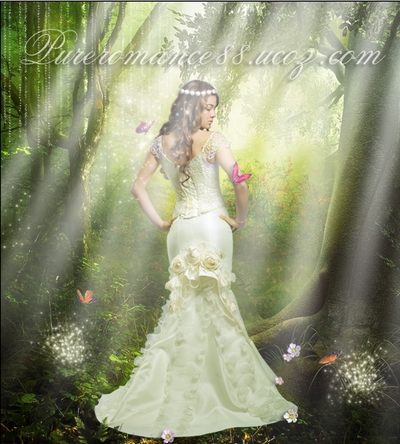
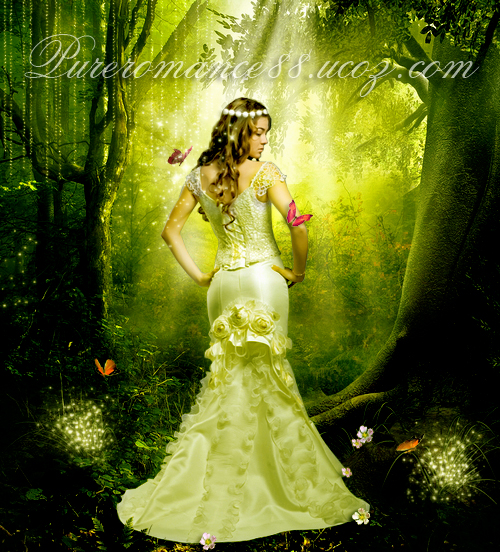
    The enchanted forest- Fantasy photo manipulation


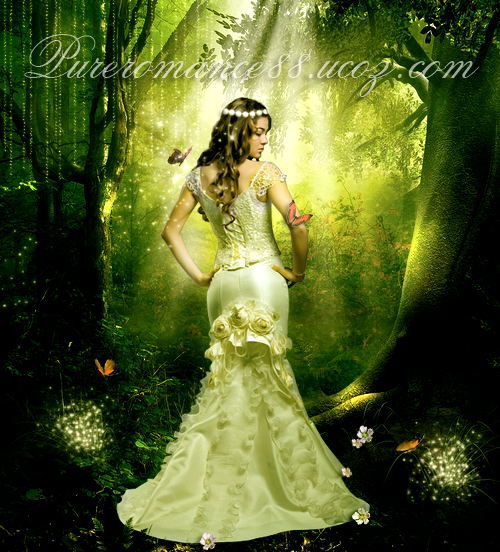
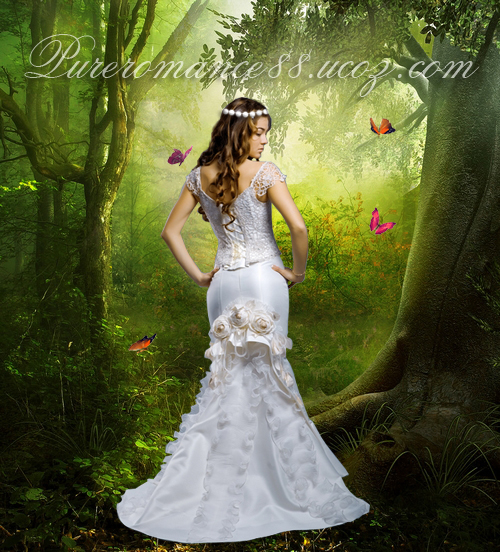
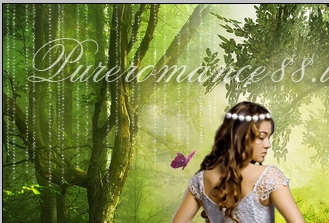
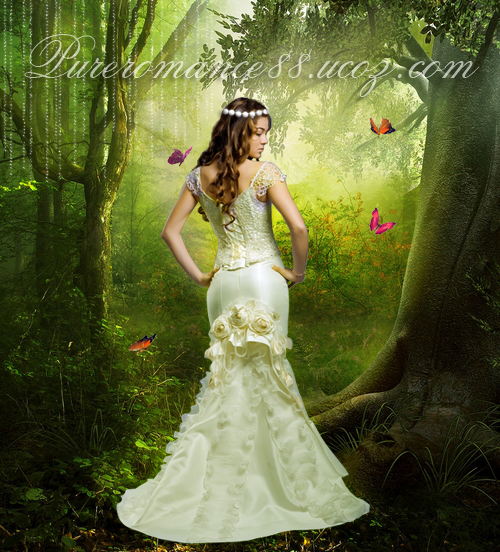
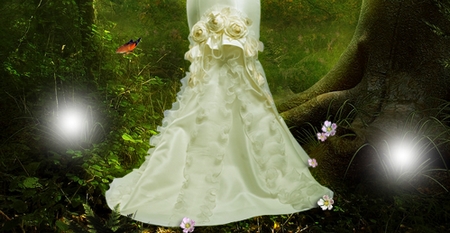
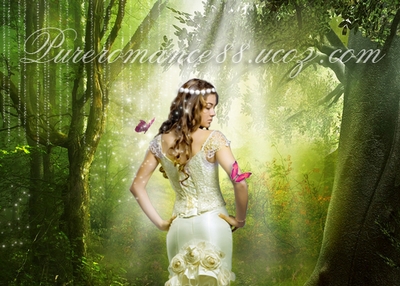
    My first fantasy photo manipulation, so bear with me! . I wanted to create a fantasy tutorial, but lacked the idea. Finally i ended up with this result. I dont really like it but i hope i can get good feedbacks and suggestions my future tutorials. So, help me?

    Resources:

    Model

    Forest background

    Fern

    Wild flower

    Butterfly 1
    and Butterfly 2
    Glitter brushes

    Light ray brushes


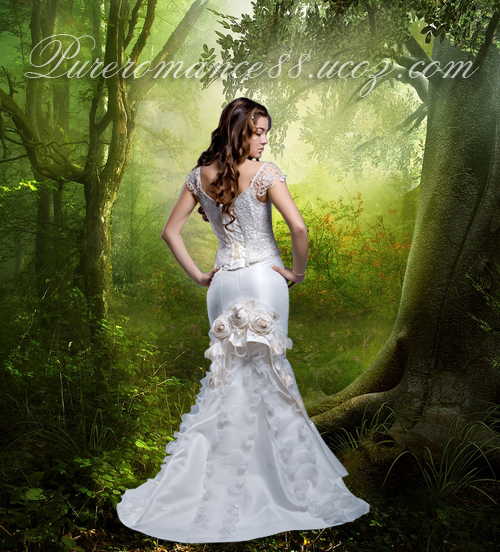
    1. Open the background , resize it.


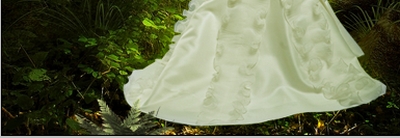
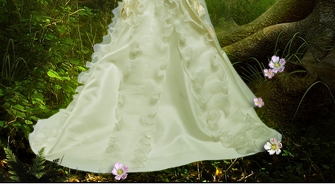
    2. Open the model stock. I use pen tool to extract her out and move into document. The bottom of background is dark and her dress is very long so we dont need to make shadow under her. We will make some things to make her look more realistic later.


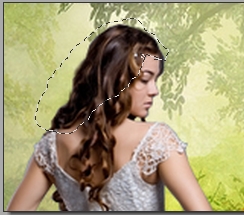
    3. Create a new layer, i use clone tool to fix her hair, check "Sample All Layers" on property bar. Now it looks more natural. To use clone tool, you can search for my retouch tutorials or on the webs.


    4. Make a new selective color layer:
    Reds: -70,-49,64,0
    Yellows: 14,9,44,0
    Greens: 35,21,46,0

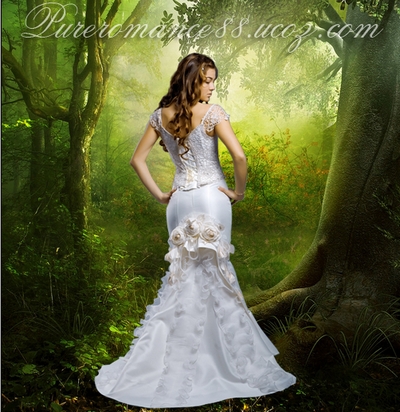
    This step is to make color of model more suitable to background.


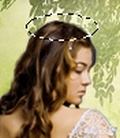
    5. Create two new layers, grab a selection with Elliptical Marquee tool on the first:

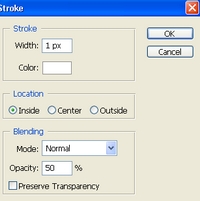
    Choose Edit-Stroke:


    Choose second layer, click Marquee tool, then right click the selection, choose Make Work Path with tolerance =0.5


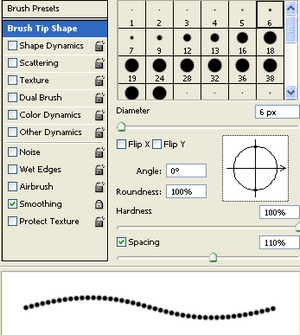
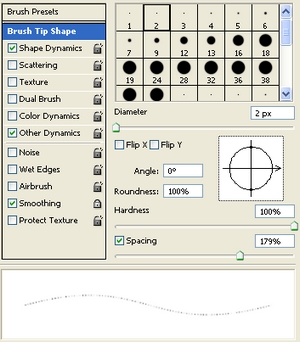
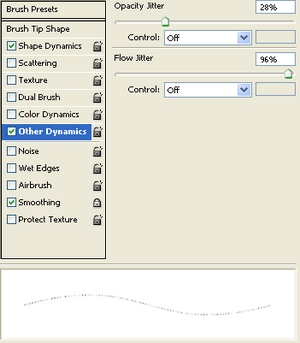
    Choose brush 6 px, hardness 100% with settings:


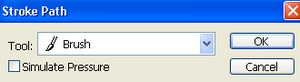
    Choose Pen tool then right click the path, choose Stroke Path:


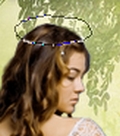
    Right click it again, choose Delete Path we have:


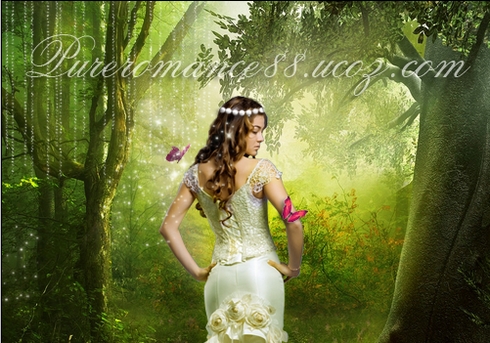
    Merge two these layers, add layer mask to eraser this circle to make it look like the pic below:


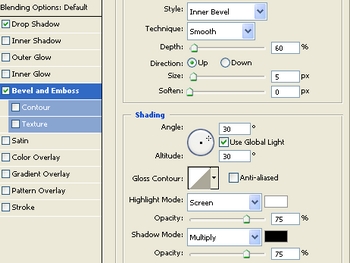
    Apply Blending options:


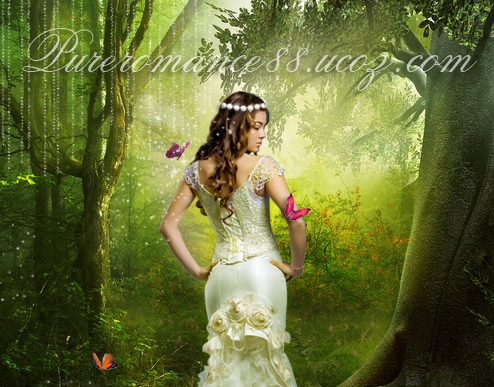
    This is what we have:


    6. Open butterfly stock. Make selection around  some different motions, copy it and paste into our file. Resize and set different positions ( its not really matter because we will edit them later )


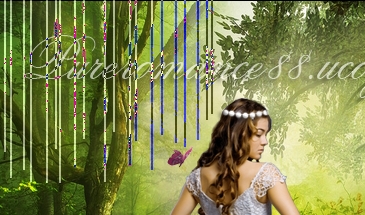
    7. Create a new layer, use Line tool to draw some lines:


    Choose white brush with 2px, hardness 100% with settings:


    Choose Stroke path and Delete path like step 5 we have:


    This step is to create tree curtain.

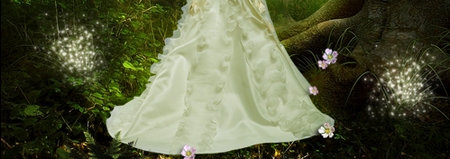
    8. Make a new layer, use soft brush with color 94a51e to paint over her dress. Set it to Soft light 100%.


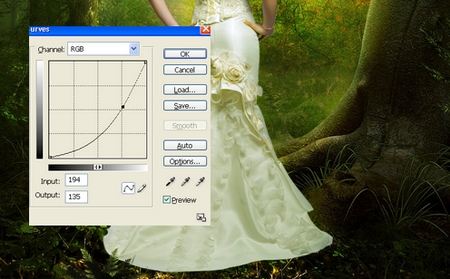
    9. Open the fern stock. I resize it then drag into document and place it under model dress:


    Press Ctrl+M to reduce the light and tone:


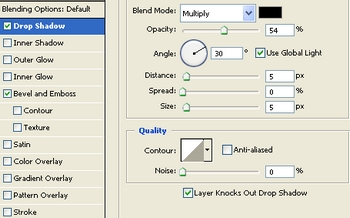
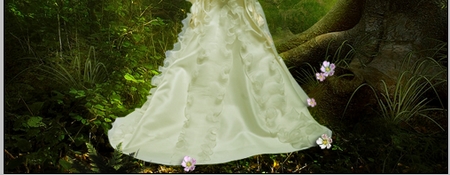
    10. Cut the wild flower stock and paste into our file. Resize, move, duplicate it many times, change some colors, distort, make drop shadow ( from blending options with default settings) and positions like this:


    11. Create a new layer, use soft white brush to make some spots on the pic:


    Set this layer to Soft light 100%


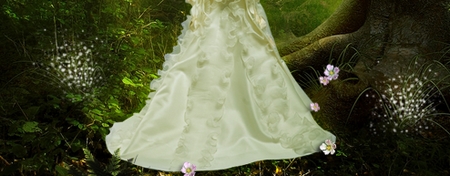
    12. New layer again, use Glitter II brushes, number 2170 then 2196 with 90 px make some glitter parts:


    Aply Outer glow with default settings we have:


    13. Come back to butterfly layers, move them to different positions and make shadow from blending options for the butterfly selected on the pic:


    14. New layer with glitter brushes, make some sparks :


    Set outer glow with default settings:


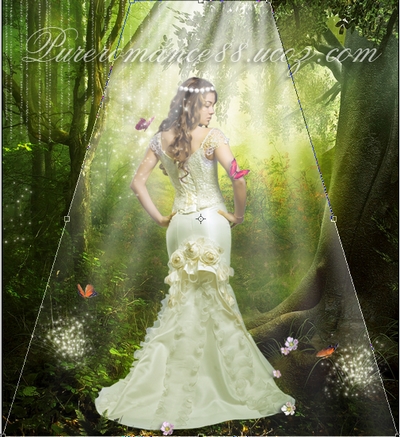
    15. New layer again, use light ray brushes, number 1266 with 650 px to make a light ray on the pic, lower opacity to 70%:


    Use perspective tool to transform it. Add layer mask to eraser some sharp part of the light rays. Then place this layer under the girl layer.


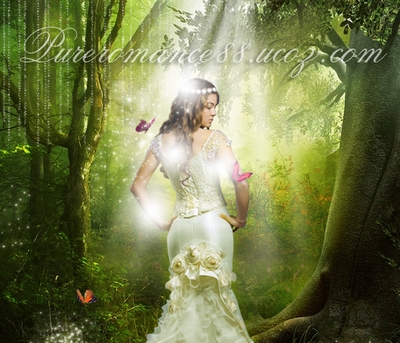
    16. Make a new layer, i use soft white brush making some spots on model:


    Set it to Soft light 100%.


    17. Create a new color balance layer:
    Midtones: 20,13,-28
    Shadows: 0,20,0
    Highlights: 0,0,-10

    New selective color layer:

    Yellows: -11,-18,54,9
    Greens: -26,100,100,100
    Blacks: 5,14,69

    New Brightness/contrast layer: -15/10


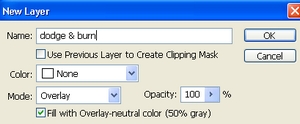
    18. Make a new layer, set to Overlay and fill with 50% gray:


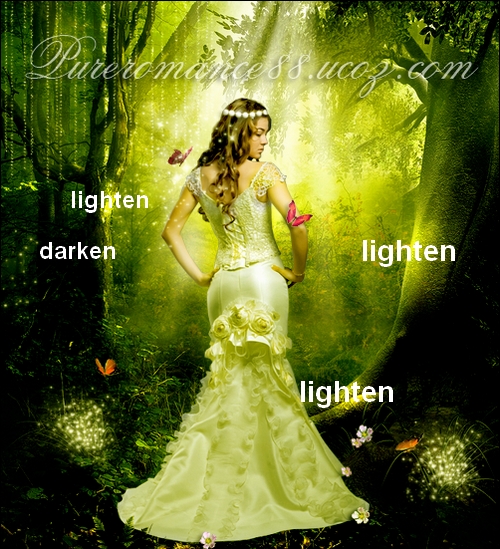
    Use Dodge and Burn tool to lighten and darken some parts of the pic.

    Move it under Color balance layer.


    19. A new selective color layer
    Reds: 72,-49,0,0
    Yellows: 11,25,-24,0
    Greens: 30,-36,0,55
    Magentas: 100,-100,0,100


    Color balance layer :
    Midtones: -12,-17, 19
    Shadows: 0,12,-8
    Highlights: 0,0,-6

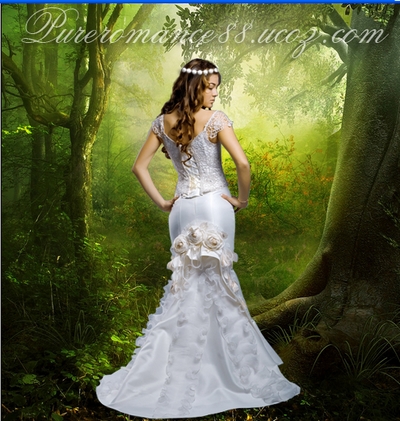
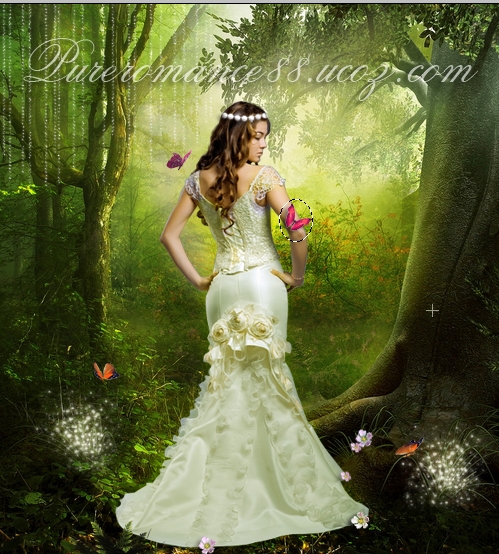
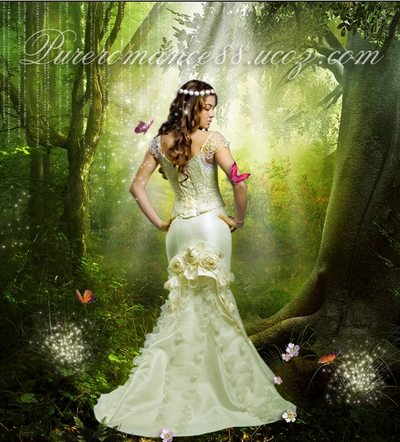
    Final result:

    Views: 39685 | Added by: Admin | Tags: Fantasy, Forest, Photoshop tutorial, Beauty, Photo manipulation, Photo effect, photoshop

    ABOUT ME: I'm Jenny and i live in Hanoi, Vietnam. If you like what i write or want to keep in touch with me, you can subscribe to My blog, email me or become my friends on Facebook to keep updates of my latest works.

    If you like this post, pls share it! Thank you!

    Share
    Share |
    Total opinions: 77
    0  
    1 hi1   (2010-11-26 6:25 PM)
    Good job!

    0  
    2 Admin   (2010-11-26 8:26 PM)
    i hope so confused ...*sigh*

    0  
    3 Wayne   (2010-11-26 11:38 PM)
    I like it and have seen a lot of tutorials!! glitter brushes are cool!

    thanks for posting


    0  
    7 Admin   (2010-11-28 9:10 PM)
    Thank you Wayne wink

    0  
    4 Christian Chin   (2010-11-28 9:49 AM)
    o wow jenny this is amazing!!! and exactly wat i was looking for, i have ur website set as my homepage and i got to say u, are amazing i cant wait for u 2 make ur next tutorial!!! happy

    0  
    8 Admin   (2010-11-28 9:11 PM)
    Thank you very much, im happy to know it wink . The next tutorial will be live soon and hope you keep liking and supporting tongue biggrin wink

    0  
    5 chuck Thomas   (2010-11-28 4:37 PM)
    I liked your fantasy very much. Can you do a poster for me please? If you e-mail me at a11 at mail dot com, I will send you the idea and photos. I would be thrilled. Chuck Thomas.

    0  
    9 Admin   (2010-11-28 9:13 PM)
    email me at pureromance888@yahoo.com and we can discuss there wink

    0  
    6 Belthy   (2010-11-28 4:43 PM)
    Very nice result, i'm gonna try it today biggrin

    0  
    10 Admin   (2010-11-28 9:15 PM)
    Thanks, and dont forget to show me your result wink

    0  
    11 Rnel   (2010-12-01 9:51 PM)
    Sweet and Sexy Fantasy Photo Manipulation result smile

    0  
    13 Admin   (2010-12-02 9:21 AM)
    In fact i dont think the result is good...i think i could do better sad . But thank you Rnel...i just wonder why it is sexy? tongue

    0  
    12 tara Noel   (2010-12-02 4:12 AM)
    I LOVE IT ITS VERY BEAUTIFUL cool biggrin

    0  
    14 Admin   (2010-12-02 9:22 AM)
    Thanks Tara! you are welcome wink

    0  
    15 Sashipoo   (2010-12-03 10:44 AM)
    I think its absolutely beautiful, I would never have known it was your first:)...its really very good biggrin

    0  
    16 Admin   (2010-12-06 11:16 PM)
    Thank you for nice feedback, it means a lot to me wink

    0  
    17 Matrocks   (2010-12-07 10:46 AM)
    thats beutiful, but if u add transparency or drop shadow at some part of the bottom on clothes, thts will be more realistic..maybe.. ^^,

    0  
    19 Admin   (2010-12-08 9:16 PM)
    i tried to do it but it didnt look good and it was hard to see the change as the bottom of background is dark as i said above wink . But thanks for your suggestion wink

    0  
    18 rhoden23   (2010-12-07 3:01 PM)
    wowwwww...so beautiful , cant wait to try this once i get home.
    nice job jenny!

    0  
    20 Admin   (2010-12-08 9:19 PM)
    Hi rhoden, glad to see you here again happy . Im happy you liked my tutorial, hope you can do it successfully wink

    0  
    21 tracy   (2010-12-12 2:37 PM)
    thanks .i love it.
    thanks very much .so specific.Nice!!!!

    0  
    25 Admin   (2010-12-14 9:19 PM)
    Thanks Tracy! wink

    0  
    22 iapdesign.com   (2010-12-13 2:44 PM)
    Thank you for this wonderful tutorial. ^_^.
    I like the lightning and style.. good job

    0  
    26 Admin   (2010-12-14 9:21 PM)
    you're welcome wink . Its always a pleasure for me to know you and people like what i write wink

    0  
    23 Jack   (2010-12-14 4:47 AM)
    After long time i am visiting your site, that is great tutorial from you once again..specially some glitter and sparkles included in plants which are there in feet of model is good. I have also noticed a reply from you saying "In fact i dont think the result is good...i think i could do better" yes the creator should be like this...you have fantastic creative ideas....Keep rocking

    --------------------------------------------------------
    www.deepetch.com
    Clipping path, masking, retouching, color correction, vector


    0  
    27 Admin   (2010-12-14 9:33 PM)
    Hi Jack
    In fact i lacked ideas and inspiration doing this tutorial dry so i dont think the result is good, but finally many people dont think like me :p.
    Thank you Jack, its always great to hear from you wink .
    Stay well, stay blessed wink

    0  
    24 mimi   (2010-12-14 10:07 AM)
    fabuluos! tongue

    0  
    28 Admin   (2010-12-14 9:33 PM)
    Thanks tongue

    0  
    29 sajjad khan   (2010-12-15 6:05 PM)
    goods photo

    0  
    30 clengz   (2010-12-16 2:46 PM)
    it soooo beautiful . . .. . . . wink

    0  
    31 Admin   (2010-12-16 9:10 PM)
    Thanks wink

    0  
    32 Alex   (2010-12-19 3:44 PM)
    That's amazing clap clap

    0  
    33 Admin   (2010-12-19 9:17 PM)
    thanks for your words wink

    0  
    34 ThePhotographer   (2010-12-22 0:26 AM)
    Wow, seriously amazing - thanks so much for sharing this!

    0  
    35 Admin   (2010-12-22 12:05 PM)
    not at all, glad it could be nice wink

    0  
    36 sk.vidurs designs   (2010-12-23 3:23 AM)
    thanks is very nice work ,, good glitter and lightning tech ..keep it up

    0  
    38 Admin   (2010-12-23 8:48 PM)
    thank you wink

    0  
    37 tonyopena   (2010-12-23 12:33 PM)
    Nice artwork Jen...i'm coming in Vietnam,hopefully next year...Right now i'm here in Qatar for a 1 year work in Graphics also...hope to see more tutorials from you.More power to all creative souls....

    0  
    39 Admin   (2010-12-23 8:51 PM)
    I hope you will get lots of success and luck in work and life no matter where you are. Thank you for your nice words, hope to see you in Vietnam soon and of course, here too wink tongue .

    0  
    40 Logomondo   (2010-12-30 2:31 PM)
    Great tutorial, thanks for sharing.

    0  
    41 Admin   (2011-01-01 8:42 PM)
    Thank you wink

    0  
    42 Sebastian   (2011-01-02 5:23 AM)
    Hello, she needs shadow behind her... smile Ofc, good job. smile

    0  
    44 Admin   (2011-01-05 10:28 AM)
    can you say it in more details? thanks wink

    0  
    43 Pro-Retouch   (2011-01-04 7:00 AM)
    Hi, very nice work and cool tutorial. Well done! Looking fwd to seeing your other work :-)

    0  
    45 Admin   (2011-01-05 10:29 AM)
    thanks for your nice words :). So keep visiting biggrin tongue wink

    0  
    46 wayne   (2011-01-06 8:31 PM)
    Congrats, I see your tut listed on PSDtut+ list of the 20 best of the web for December 2010! Great job!! http://psd.tutsplus.com/

    0  
    47 Admin   (2011-01-06 9:20 PM)
    I knew it already and i was very surprised biggrin for my this tutorial has been featured on some popular photoshop sites wacko tongue tongue . Thanks for your words and kindness wink though im really confused about how great it is ...lol... biggrin biggrin biggrin tongue tongue

    0  
    48 Delali   (2011-01-24 1:00 AM)
    please help me, i'm almost done, but i'm stuck at "creat a new color balance" i know where the colore balance is, but i don't know how to creat a new one, can someone please help me how to "create a NEW color balance?
    thank u

    0  
    49 Admin   (2011-01-24 9:08 PM)
    its an adjustment layer. Choose Layer-New adjustment layer-Color Balance wink

    0  
    50 sya syaza   (2011-02-03 1:41 AM)
    Hi Jenny.i'm from malaysia.it's amazing.I dont think this is not good enough.but...can i ask ur favor?can u send me via email those model.i find it not available 4 free.actually im a bit shy to say this but im a student n dun hv enough money(the truth is i dun know how 2buy it too!) 2 buy those model picture..TQ hope u'll make more tutorial like this happy

    0  
    51 Admin   (2011-02-06 9:24 PM)
    Hi
    Some people asked me to do it too but as i said above, its a purchased model and i cant redistribute or share it. Sorry. No need to do the same model like mine, you can apply it on your own. I think you can find many better models from free photo sources such as deviantart or sxc.hu.

    0  
    52 Dom   (2011-02-16 10:53 PM)
    excuse me, where can i find those brushes?? It seems that i can't find any glitter II, light ray, glitter brushes on CS3. mind helping me?
    0  
    53 Admin   (2011-02-16 11:33 PM)
    you can follow all the links in Resources part i gave above... i dont know why you cant find them?

    0  
    54 wilma   (2011-03-07 4:13 PM)
    Amazing and eye catching tutorial. Good Job keep it up!!! smile

    0  
    55 Admin   (2011-03-07 8:57 PM)
    Thank you!

    0  
    56 iding   (2011-03-14 2:39 AM)
    Hi jenny...
    I from indonesia...
    all your toturial a great job...amazing...
    NIce work... wink

    0  
    57 Admin   (2011-03-14 8:37 PM)
    Greetings to Indonesia and thank you for nice words! wink

    0  
    58 thamali   (2011-04-22 3:55 PM)
    very nice. smile smile

    0  
    59 Admin   (2011-04-22 10:10 PM)
    Thanks wink

    0  
    60 Lisa   (2011-04-29 1:56 AM)
    Wow this is a great tutorial. You made beautiful choices. Thanks you for sharing. I will bookmark this one and see what I can come up with. smile

    0  
    61 Admin   (2011-04-29 11:22 PM)
    Thanks, im glad to see the result with your practice. Dont forget to show me it wink

    0  
    62 shruti   (2011-05-23 3:25 PM)
    beautiful and great job.......and thanks for sharing

    0  
    63 Admin   (2011-05-27 0:01 AM)
    my pleasure ...glad to know it wink

    0  
    64 Ramesh Vishwakarma   (2011-06-08 5:38 PM)
    Great job... Love this tutorial

    0  
    65 Admin   (2011-06-08 10:53 PM)
    aww thank you ^^

    0  
    66 DarkMagic   (2011-06-09 7:26 PM)
    wow, that's amazing ^^

    0  
    67 Admin   (2011-06-11 0:05 AM)
    thanks biggrin

    0  
    68 clipping path   (2011-06-18 2:17 PM)
    I really like these tutorial very wonderful blog it is, you have done a great work thank you so much for sharing these post.

    0  
    69 Admin   (2011-07-05 11:25 AM)
    It's always pleasure for me. Thank you wink

    0  
    70 Terrie   (2011-07-13 4:02 AM)
    I really like this! I think the girl is posing more to sell the dress than to enjoy the enchanted forest. I would have chosen a different model, but this dress is gorgeous!

    0  
    72 Admin   (2011-07-21 11:23 PM)
    haha you're right, so we photomanipulators have stuffs to do tongue biggrin wink

    0  
    71 Angelic   (2011-07-21 4:03 PM)
    Woow... it's cool clap

    0  
    73 Admin   (2011-07-21 11:23 PM)
    Thanks wink

    0  
    74 Mattingly   (2012-02-15 5:15 AM)
    Thanks for tnaikg the time to post. It's lifted the level of debate

    0  
    76 Admin   (2012-03-12 2:53 PM)
    you're welcome, it's my pleasure always wink

    0  
    75 khan.mateen   (2012-02-15 4:55 PM)
    beautiful pic cry

    0  
    77 Admin   (2012-03-12 2:53 PM)
    why sad ?

    Something you should read before leaving your words:

    1. Pls use English or Vietnamese only which i can understand. Comments with another languages will be deleted.

    2. Pls be kind. You can say your own thinkings, opinions, ideas even negative ones, but i don't accept the rudeness or if you lack the respect to me and my readers.
    3. Pls don't use only emoticons or one word "hi" to represent your voice. All of such comments will be deleted. If you really want to say something, why don't leave more impressions?
    4. No spam, advertisement ( cheap host, back link...) or stuffs that are not relevant to me or my blog content. Comments are always pre-moderated so the spams will not get any chances to be published.
    5. Pls don't ask if they are not relevant to my blog content ( for example: ask me to help to do an effect on another site). I've been so busy so hard to follow such requests.
    6. Html code for comment board is disabled. So pls don't use it here. But if you want to leave the link of your site here, just do it with prefix http://. For example http://www.google.com. Is it simple, isn't it ?
    And now, have fun!


    Name *:
    Email:
    Code *:
    Copyright MyCorp © 2012
    Free web hosting - uCoz
    ?if()?>