


Create a beautiful illustrated sketch effect - 28 August 2010 - Poetry, Writings, Art, Design
Monday, 2012-05-28, 12:22 PM

Creativity comes from simplifying

Main | Registration | Login
Welcome Guest
RSS
MY TUTORIALS ON OTHER SITES
  • Create an emotional sunset photo manipulation

  • Create a cat in a magical pond scene photo manipulation

  • Create a surreal photo manipulation Coffee Mind

  • Create a Fantasy floating park photo manipulation

  • Twisting Water-Surreal photo manipulation

  • Firing Heart-Emotional photo manipulation

  • Create a dramatic building explosion scene

  • Let me sink-Emotional rainy scene photo manipulation

  • Create a colorful and furistic photo manipulation

  • The Sky Station - Surreal photo manipulation

  • The Vampire Hunter - Dark photo manipulation

  • Dark storm scene photo manipulation

  • The Released - Dark and surreal photo manipulation

  • Wounded rose - Create an abstract photo manipulation

  • Create a dark and emotional photo manipulation

  • Create a dramatic battle scene in photoshop

  • The Forgotten - Dark an conceptual photo manipulation

  • Night's butterfly-Create a dark and mysterious fantasy portrait

  • Create an anti-smoking concept design in photoshop

  • A dreamy world-Create a fantasy landscape

  • Create a dramatic action scene poster

  • Create a nature inspired, out of bound photo effect in photoshop

  • Cool metal text effect

  • Dance in blue - Fantasy photo manipulation

  • Emotional night scene - Photo manipulation

  • Create a lovely 3D like butterfly in Photoshop

  • Create a beautiful Valentine background with moon and heart

  • Create a beautiful and romantic Valentine wallpaper

  • Beautiful pink flower portrait

  • Create a beautiful spring greeting card in photoshop

  • Beautiful spring-Fantasy photo manipulation

  • Cool floral 3D text effect

  • Colorful bokeh heart effect

  • Retro artistic effects

  • Sexy ghost in the uninhabited house-Dark photo manipulation

  • Colorful and glamour composition style in photoshop

  • Glowing text in colorful fantastic space scene

  • Magical blossom dance-Fantasy photo manipulation

  • RECENT TALKS
    TAGS
    Winter photoshop love model GHost 3D valentine Letter sparkling Asadal My story Penelope Cruz Fantasy Effect spring Forest dark graphics font Mandy Moore Misc fruit Memory glitter Random thoughts FLY rose Skin Photo manipulation BANNER Woman Blend background Heart NIGHT Blue vector wallpaper Blood Calligraphy Dreamy yellow Fonts lake Life Soft Sweet Stock flower My poetry colorful gif red season HOUSE Beauty painting script Autumn summer girl Sky drawing Text effect Feeling green missing Inspiration Wind Design Snow light Typography butterfly Beautiful pattern Golden Mood Photoshop tutorial Pink Photo effect abstract Nature frame music Surreal romantic color Portrait photos glowing photo icon Creative Rain Beautiful girl special effect Photo retouch Burning Hurt
    ARCHIEVES
    SEARCH


    RECENT POSTS
    [2012-05-20]
    On My Road - Surreal Photo Manipulation
    [2012-03-07]
    Create a Nature themed, Astract photo manipulation
    [2011-10-29]
    The Mirror - Dark and horror photo manipulation
    [2011-07-30]
    Color blending collection IV
    [2011-06-20]
    Give your ordinary portrait photo glamorous effect with charming make-up
    MOST POPULAR
    [2010-07-26]
    Complete portrait retouching
    Views: 43361
    [2010-11-26]
    The enchanted forest- Fantasy photo manipulation
    Views: 40197
    [2011-01-31]
    Create beautiful glowing flowers
    Views: 36054
    [2011-01-15]
    Color blending collection 3
    Views: 34769
    [2010-08-22]
    Color blending collection I
    Views: 30115
    [2010-10-27]
    Create a model look with naturally perfect skin
    Views: 28012
    [2010-05-29]
    Enhance portrait photo with natural look
    Views: 27693
    [2010-11-15]
    25 beautiful dreamy effect photoshop tutorials
    Views: 27514
    [2010-09-14]
    Soft and dreamy movie effect
    Views: 26257
    [2010-03-15]
    Beautify a portrait
    Views: 25677
    MOST TALKED
    [2010-11-26]
    The enchanted forest- Fantasy photo manipulation
    Opinions : 77
    [2011-01-31]
    Create beautiful glowing flowers
    Opinions : 63
    [2010-12-06]
    The Winter Queen - Fantasy photo manipulation
    Opinions : 42
    [2010-03-15]
    Beautify a portrait
    Opinions : 40
    [2010-10-10]
    Create a beautiful emotional black and white love scene
    Opinions : 38
    [2010-07-06]
    Create beautiful golden skin effect using three different ways
    Opinions : 37
    [2010-08-22]
    Color blending collection I
    Opinions : 36
    [2010-12-15]
    Sweet red 3D love text effect
    Opinions : 35
    [2010-07-21]
    Vibrant and glamourous retouching
    Opinions : 34
    [2011-01-15]
    Color blending collection 3
    Opinions : 32
    RANDOM POSTS
    [2010-05-03]
    Create a painting effect in photoshop
    [2010-01-08]
    Ballad of the dawn
    [2010-04-05]
    Dreamy portrait effect
    [2010-05-15]
    Our love
    [2010-05-14]
    Create quickly some interesting imitating effects in photoshop
    MY FAVORITE SITES
  • PSD Tutsplus
  • FanExtra network
  • Webmaster tutorials
  • Typography resources
  • STATISTICS

    Total online: 4
    Guests: 4
    Users: 0
    Main » 2010 » August » 28 » Create a beautiful illustrated sketch effect


    5:47 PM
    Create a beautiful illustrated sketch effect
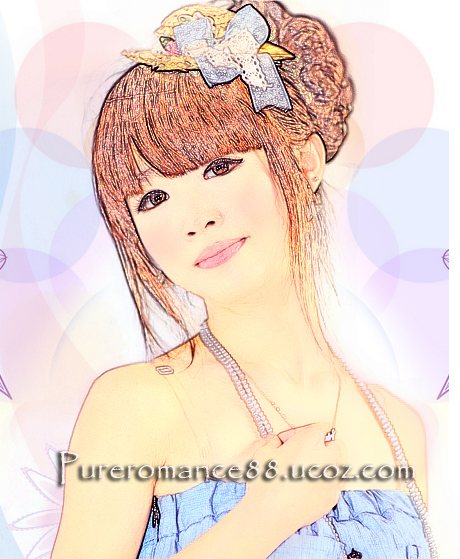
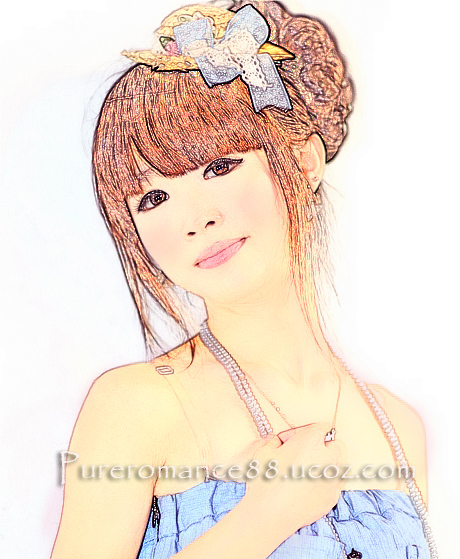
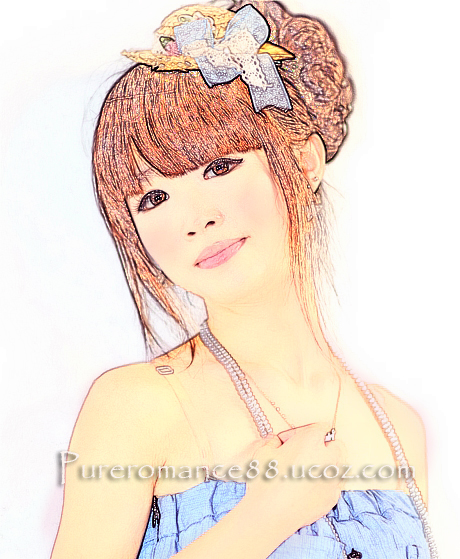
    Today i will show you how to do a nice illustrated sketch effect.


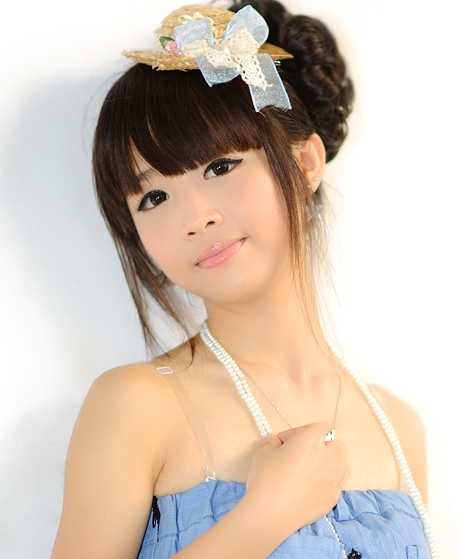
    Stock:


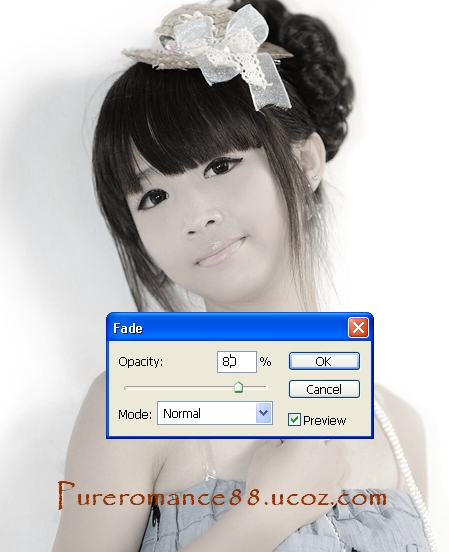
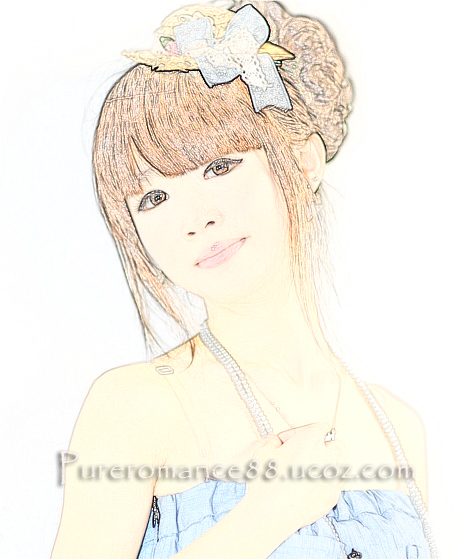
    1. Duplicate your pic we have layer 1 . Press Ctrl+Shift+U to desature it. Choose Edit - Fade desaturate:


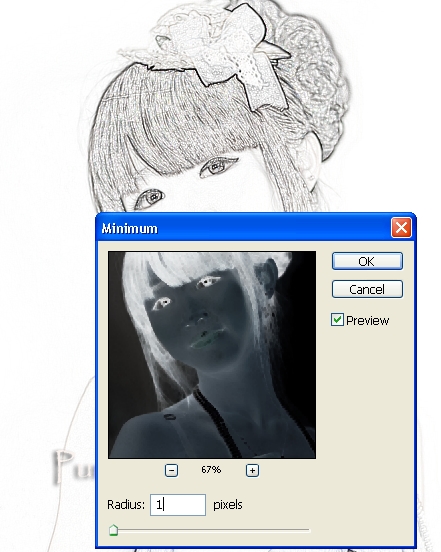
    2. Press Ctrl+J to duplicate layer 1 we get layer 1 copy. Ctrl+I to invert it, then set this layer to Color Dodge 100%. Choose Filter-Other-Minimum:


    Choose layer 1, lower opacity to 50-70% depending on your pic. I choose 50% because my pic is light:


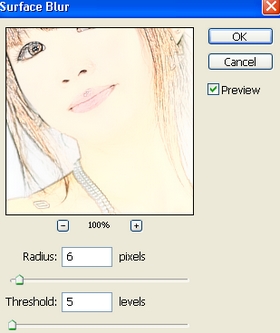
    3. Ctrl+Shift+Alt+E to get a new layer. Apply Surface blur:


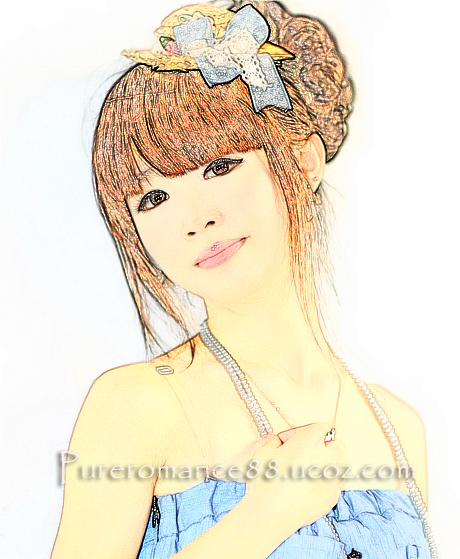
    Set this layer to Multipy 100%. Duplicate it and lower opacity to 50% we have:


    If your pic is dark you can choose another mode such as Screen, set right opacity or skip changing mode.


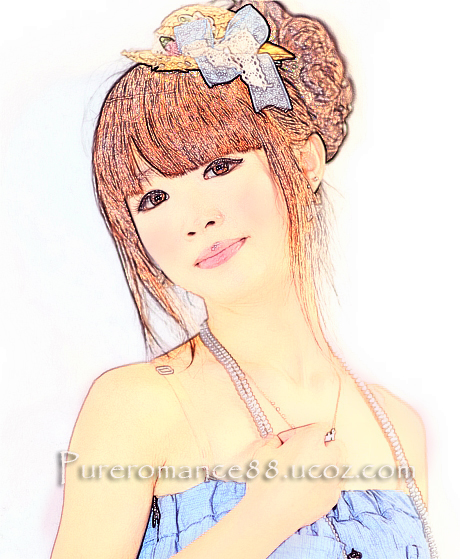
    4. Now we can use adjustment layers to make the pic look better. I choose Color balance:


    5. Create a new layer, chose soft brush, color feb9d0 to paint on her cheeks and then her skin, set this layer to Multipy 25%.


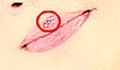
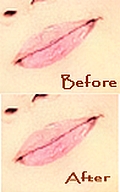
    6.  We see something wrong with her lips. It caused the light reflected on her lips in original pic.


    Create a new layer, choose Clone tool and check Same All Layers on property bar. Hold Alt key to choose the right area of lip and paint over there.


    7. Use soft brush, 2px, with color of left lips stroke to draw the right:


    8. Add bakcground ( i add some vector patterns, set this to Multipy 50% , add a layer masks to eraser the model) to complete the final effect:


    Some tips for this tutorial:
    - Use another adjsutment layers to adjust the light and color, such as Level, Brightness/contrast or Curves if needs.
    - If your pic background is not a simple color ( like my pic) you should skip the step 8.
    Views: 15945 | Added by: Admin | Tags: Illlustration, sketch, Photoshop tutorial, Photo effect

    ABOUT ME: I'm Jenny and i live in Hanoi, Vietnam. If you like what i write or want to keep in touch with me, you can subscribe to My blog, email me or become my friends on Facebook to keep updates of my latest works.

    All of the tutorials on my website may not be posted anywhere or translated into another languages without my written permission. Thank you!

    Share
    Share |
    Total opinions: 16
    0  
    1 Kraussen   (2010-08-31 2:53 PM)
    Nice tut, thank you for sharing smile

    0  
    2 Admin   (2010-08-31 5:17 PM)
    thanks, you're welcome wink

    0  
    3 imperivm   (2010-08-31 8:38 PM)
    nice tut

    0  
    4 Admin   (2010-08-31 9:51 PM)
    thank you wink

    0  
    5 Intelektual muda   (2010-09-02 3:33 PM)
    keren woy tutorial-a

    0  
    6 olu   (2010-09-02 8:16 PM)
    nice, u good

    0  
    7 charluzh   (2010-09-03 8:26 PM)
    nice tutorial , thanks tongue

    0  
    8 santhiya   (2010-09-04 12:53 PM)
    nice ..

    0  
    9 Admin   (2010-09-05 9:54 PM)
    @Intelektual muda : pls explain

    @all: thank you guys, im glad it could be interesting wink


    0  
    10 Patrick   (2010-09-06 2:24 PM)
    thank you for that wonderful tutorial. i really love this one.

    here's my work for that tutorial

    http://www.facebook.com/photo.p....6243981

    again, thank you! biggrin


    0  
    11 Admin   (2010-09-06 3:31 PM)
    the result is nice biggrin
    im pleased it was useful for you wink
    keep visiting biggrin

    0  
    12 chrisbman   (2010-12-29 8:05 AM)
    thanks so much, good lesson thx for sharing, am a really keen infusiast.

    and you have shown me a few things i havent even tried yet esp: Filter other minimum etc: thanks again. please keep in touch send me all links to your work.

    find me on www.flickr.com/chrisblackman1/


    0  
    13 Admin   (2011-01-01 8:32 PM)
    im glad for what i shared useful for you. Thank you for telling me it wink . you're very welcome and i wish you all the best for a greate new year. wink
    Btw, i cant open your link on flickr...

    0  
    14 Business logo design   (2011-05-16 8:37 PM)
    Great tutorial and good steps.
    wacko

    http://www.logoian.com


    0  
    15 Admin   (2011-05-19 10:24 PM)
    really? thanks a bunch wink

    0  
    16 Luella   (2012-02-15 4:36 PM)
    Articles like these put the cnosmuer in the driver seat-very important.

    Something you should read before leaving your words:

    1. Pls use English or Vietnamese only which i can understand. Comments with another languages will be deleted.

    2. Pls be kind. You can say your own thinkings, opinions, ideas even negative ones, but i don't accept the rudeness or if you lack the respect to me and my readers.
    3. Pls don't use only emoticons or one word "hi" to represent your voice. All of such comments will be deleted. If you really want to say something, why don't leave more impressions?
    4. No spam, advertisement ( cheap host, back link...) or stuffs that are not relevant to me or my blog content. Comments are always pre-moderated so the spams will not get any chances to be published.
    5. Pls don't ask if they are not relevant to my blog content ( for example: ask me to help to do an effect on another site). I've been so busy so hard to follow such requests.
    6. Html code for comment board is disabled. So pls don't use it here. But if you want to leave the link of your site here, just do it with prefix http://. For example http://www.google.com. Is it simple, isn't it ?
    And now, have fun!


    Name *:
    Email:
    Code *:

    Copyright MyCorp © 2012
    Free web hosting - uCoz
    ?if()?>?endif?>2